Note
Access to this page requires authorization. You can try signing in or changing directories.
Access to this page requires authorization. You can try changing directories.
GitHub Copilot acts as an AI-powered pair programmer for Visual Studio that provides you with context-aware code completions, suggestions, and even entire code snippets. It provides these suggestions directly in the editor while you write your code, and it can work with a broad range of programming languages and frameworks.
Copilot provides two kinds of inline suggestions, both of which take your existing code into account:
- Completions - As you type in the editor, Copilot provides ghost text suggestions with colorized syntax highlighting at your current cursor location.
- Next edit suggestions - Based on your current editing patterns, NES predicts both where your next code edit will be and what changes you'll make.
How GitHub Copilot works
GitHub Copilot works by using advanced machine-learning models trained on a vast dataset of publicly available code from GitHub repositories. As you type code, AI analyzes the context and provides relevant suggestions in real time. You can also receive suggestions by writing a comment in natural language that describes what you want the code to do.

You can also use GitHub Copilot to convert comments to code, create unit tests, create SQL queries, and more.
Prerequisites
Visual Studio 2026 or Visual Studio 2022 version 17.14 (with the latest servicing release recommended for the most up-to-date features)
Sign in to Visual Studio by using a GitHub account with Copilot access.
If you don't yet have a Copilot subscription, you can use Copilot for free by signing up for the Copilot Free plan and get a monthly limit of inline suggestions and chat interactions.
Get your first code completions
As you type code or comments in the editor, GitHub Copilot provides ghost text code suggestions: sometimes the completion of the current line, sometimes a whole new block of code. You can accept all, or part of a suggestion, or you can keep typing and ignore the suggestions.
GitHub Copilot provides suggestions for numerous languages, including (but not limited to) C#, C++, and Python. The following examples are in C#, but other languages work similarly.
Open Visual Studio and create a new C# project.
Open a C# file (
Program.cs) in the code editor.In the editor, enter a comment or a method signature to see inline code suggestions from Copilot.
// method to add two numbersint subtractNumbers(
Press enter to see the GitHub Copilot command palette.
To accept the suggestion, select the Tab key. To reject the suggestion, select the Esc key or continue typing.

Select the arrow in the left margin to see the Copilot command menu.
To accept the suggestion, select the Tab key. To reject the suggestion, continue typing.
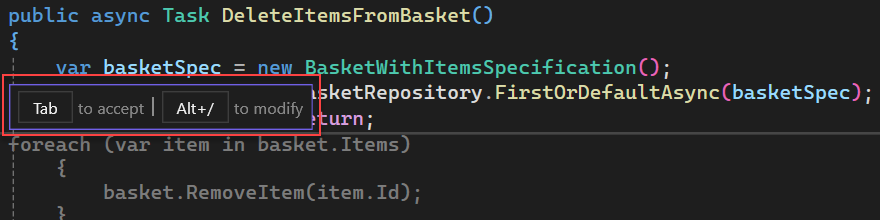
Add the following code to see completions from Copilot:
    int a = 5;
    int b = 10;
    int sum
Generate documentation comments
To use automatic generation of documentation comments on your C++ or C# project file, type the comment pattern according to your configuration (for example, ///). Copilot instantly completes the function description based on the function's content.

Tips and tricks
Keyboard shortcuts
- Manually trigger a completion: Alt+. or Alt+,
- Cycle through available completions: Alt+. (next) and Alt+, (previous)
- Partially accept a completion word by word: Ctrl+Right arrow
- Partially accept a completion line by line: Ctrl+Down arrow
Customize your experience
All inline suggestions settings can be found via Tools > Options > Text Editor > Inline Suggestions. You can also access this settings page via shortcuts from the Copilot badge menu, or via the context menu from Copilot inline suggestions margin indicator.
Customize your inline suggestions experience with these settings:
- Disable automatic completions - By default, each keystroke triggers inline suggestions. To disable this, go to Tools > Options > All Settings > Text Editor > Inline Suggestions > General, and set Inline Suggestions Invocation to Manual. You can then manually trigger suggestions with Alt+, or Alt+..
- Adjust completion timing - If completions appear too quickly and interrupt your typing, go to Tools > Options > All Settings > Text Editor > *Inline Suggestions > Preferences, and select the Show inline suggestions only after a pause in typing. This adds a debounce delay, so completions don't flash and disappear while you type.
- Change the accept suggestion keyboard shortcut - By default, Tab key accepts suggestions. You can change it to the Right Arrow key instead.
For additional settings and options, see the Inline Suggestions settings page.
Customize appearance
To customize the appearance of completions, go to Tools > Options > Environment > Font and Colors, and then select Code Completions from the Display items list, and adjust the font type, size, foreground/background color, and style.
All inline suggestions settings can be found via Tools > Options > GitHub > Copilot. You can also access these settings via shortcuts from the Copilot badge menu, or via the context menu from Copilot inline suggestions margin indicator.
Customize preferences
Adjust completion timing - If completions appear too quickly and interrupt your typing, go to Tools > Options > IntelliCode > Advanced, and select Wait for pauses in typing before showing whole line completions. This adds a debounce delay, so completions don't flash and disappear while you type.
Disable automatic completions - By default, each keystroke triggers completions. To disable this, go to Tools > Options > IntelliCode > General, and uncheck Automatically generate code completions in the Editor. You can then manually trigger completions with Alt+,.
Content exclusion
Completions and suggestions aren't available for content excluded by your admin. To learn more, see Excluding content from GitHub Copilot.
Code referencing
If you or your organization enable suggestions that match public code, Copilot notifies you when a completion matches code from a public GitHub repository.
To see detailed information in GitHub Copilot logs in the Output window, select View code matches. The log entry includes a link to a GitHub.com page where you can view details on license type. It also includes references to similar code in public GitHub repositories.

Code referencing enables you to make an informed decision on using code attribution or removing the code from your project.